

How to Set Up Google Tag Manager For A Website the Right Way: Step-by-Step With Pictures
Google Tag Manager is Google software that is used to add “triggers” into Google Analytics (GA4). A trigger is an event action that will be displayed on your Google Analytics dashboard every time a desired action is taken.
For example, if you want to know how many people are clicking on a certain link on your website you can set up a trigger for that action.
This tutorial is for those using Google Tag Manager (GTM) with a website.
Step 1.
In the search bar of Google Chrome type “google tag manager”. Use the search bar in the middle of the screen instead of the one in the top bar. If you use the top bar search and you have multiple Google Accounts, Google Chrome will default to the current signed in account instead of the account you want to set up Google Tag Manager in.
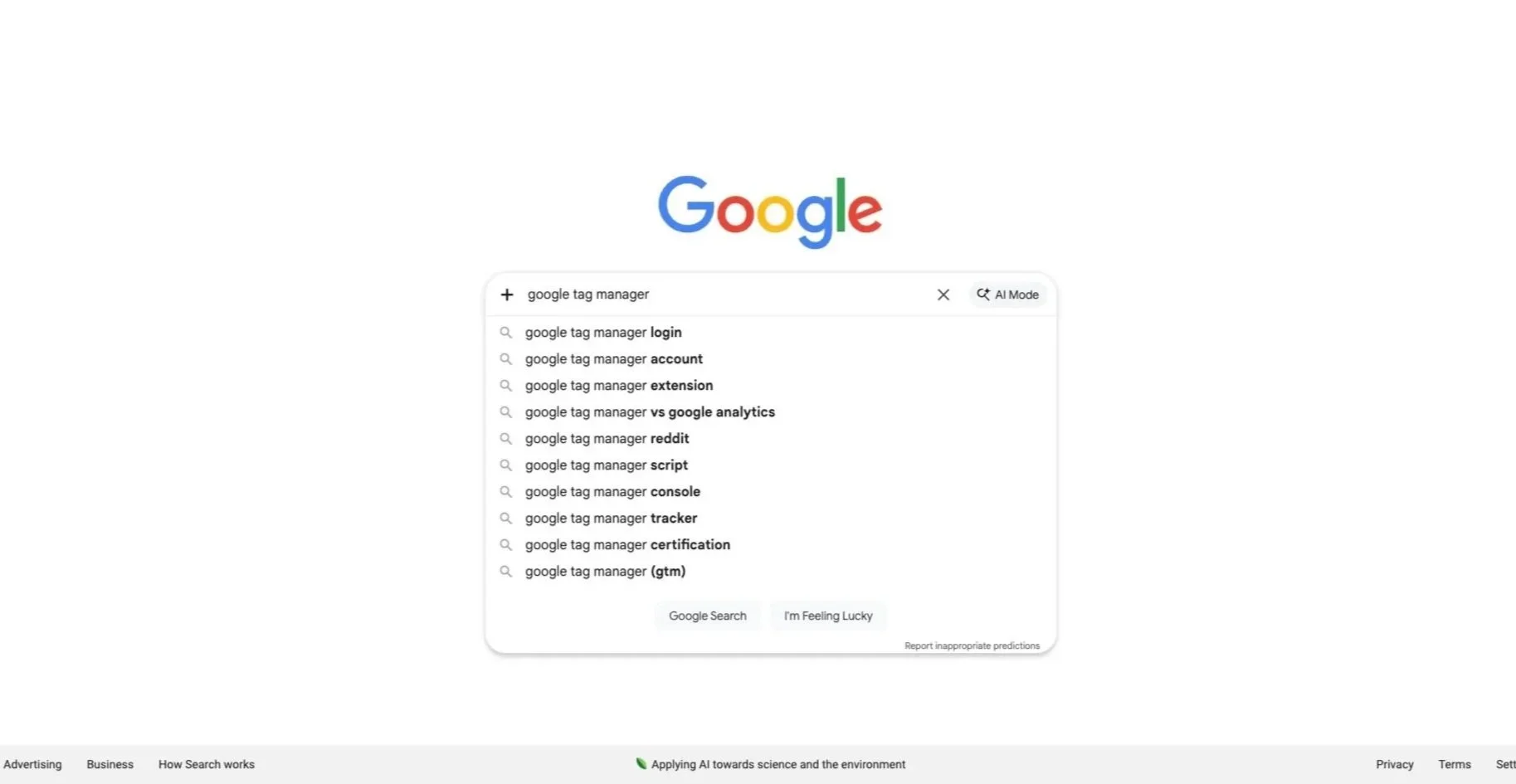
Click the first link that says, “Website Tag Management Tools & Solutions”.
Step 2.
After clicking on that first link, your page should look like the one below.
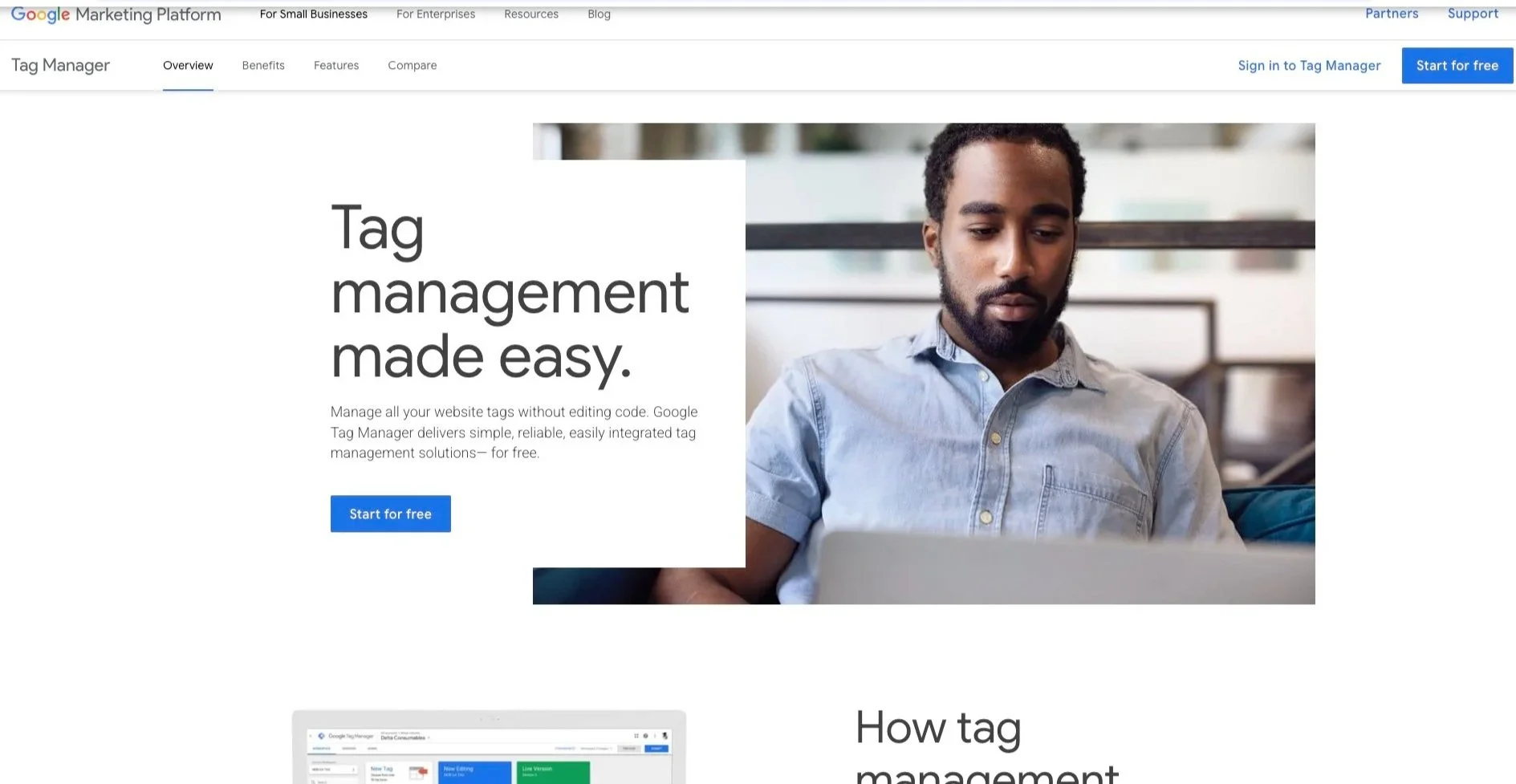
Click “Start for free”.
Step 3.
Once you click, “Start for free”, your screen should match the one down below.
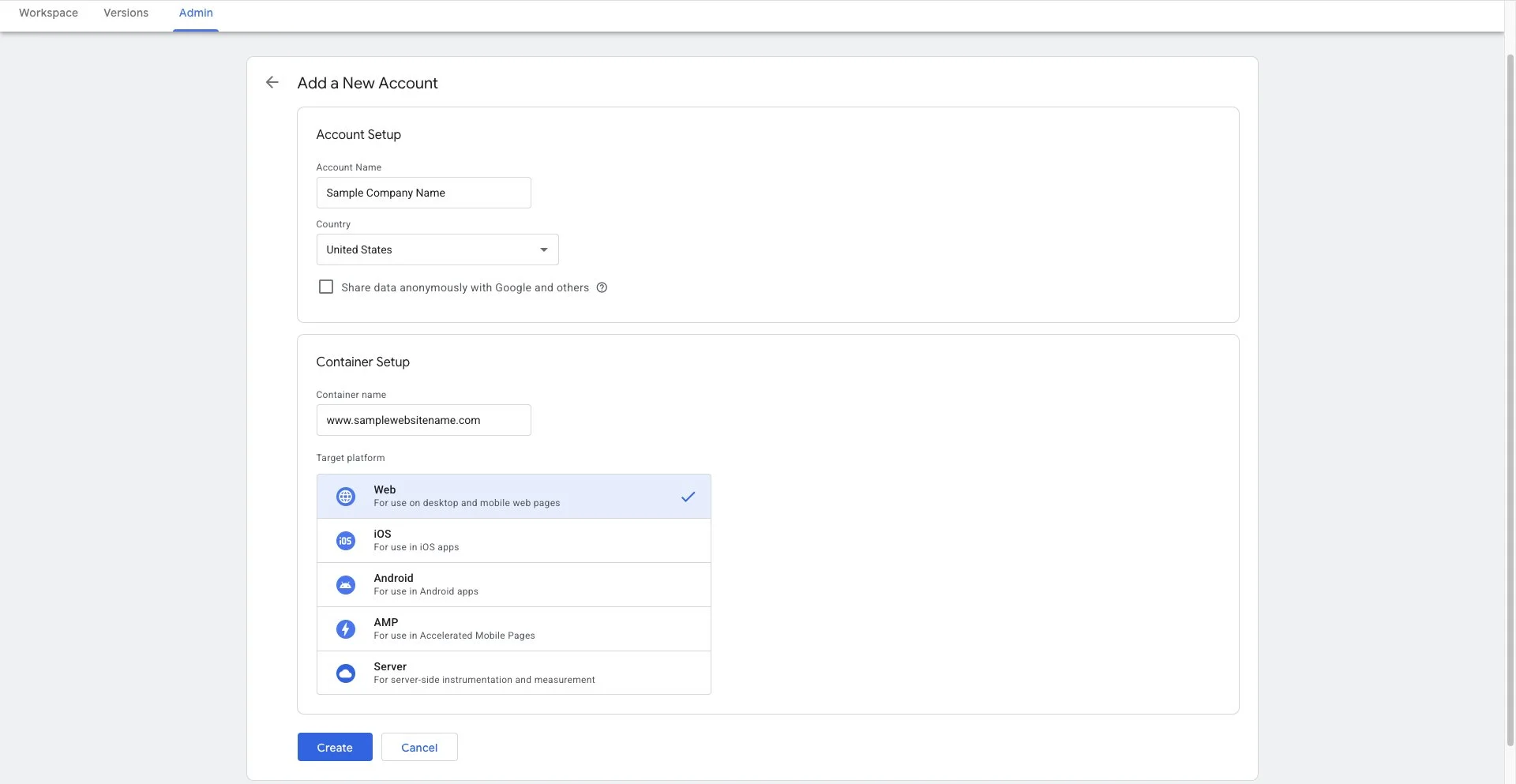
In “Account Name”, type the name of your company.
Select your county.
Leave “Share data anonymously with Google and others” unchecked. Unless you want to share data with Google and others, but you can proceed without this box being checked.
Under “Container name” type out your website domain or the name of your business, app, server, etc.
Under “target platform” select “Web”.
Then, press create.
Step 4.
Your screen should look like this.
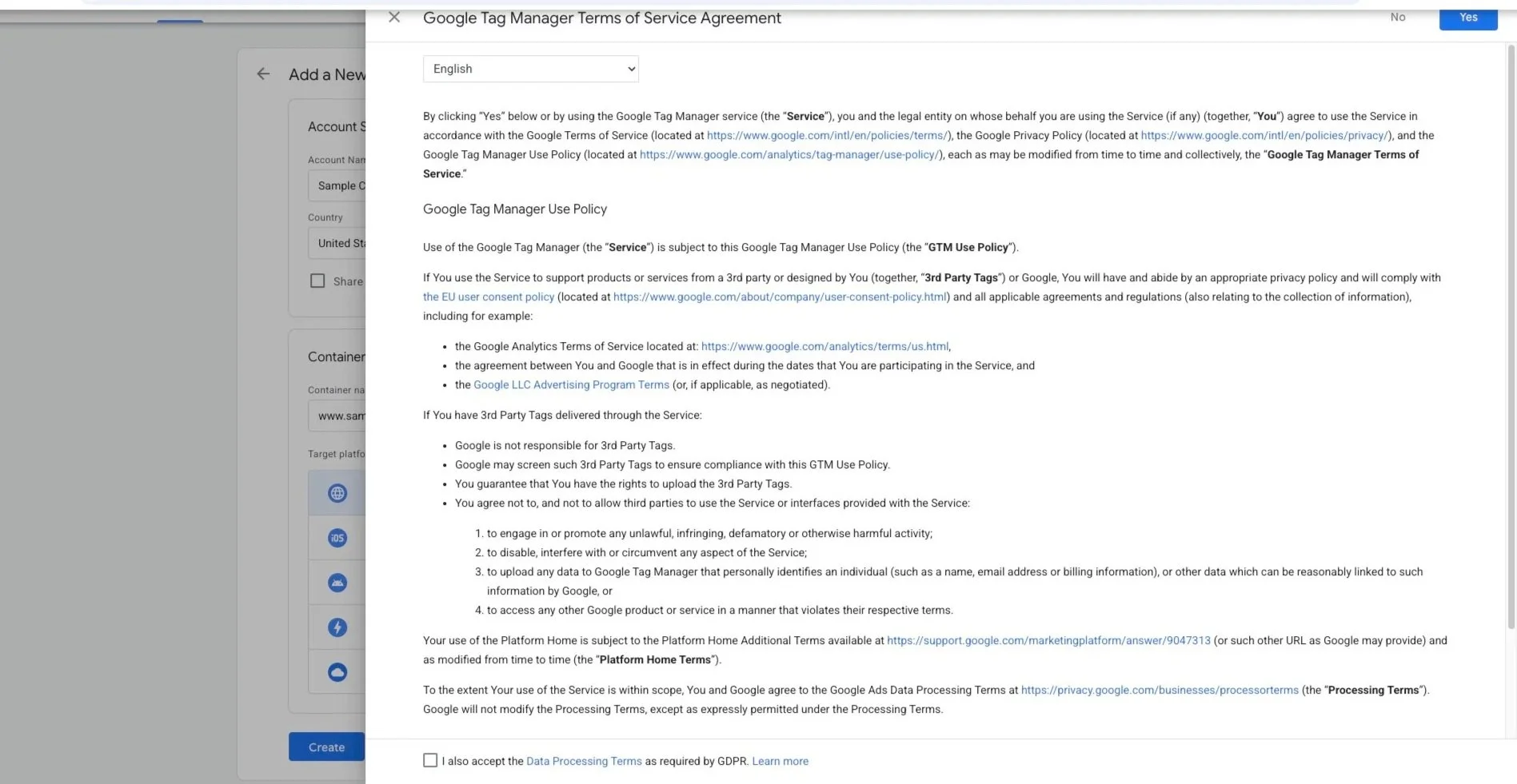
You can leave “I also accept the Data Processing Terms as required by GDPR. Learn more” unchecked as this box does not need to be check off in order to move forward with the sign-up process.
Select “Yes”.
Step 5.
Once the page below looks like the photo below you may close the “Install Google Tag Manager” box. You can use Google Analytics (GA4) to add a new tags.
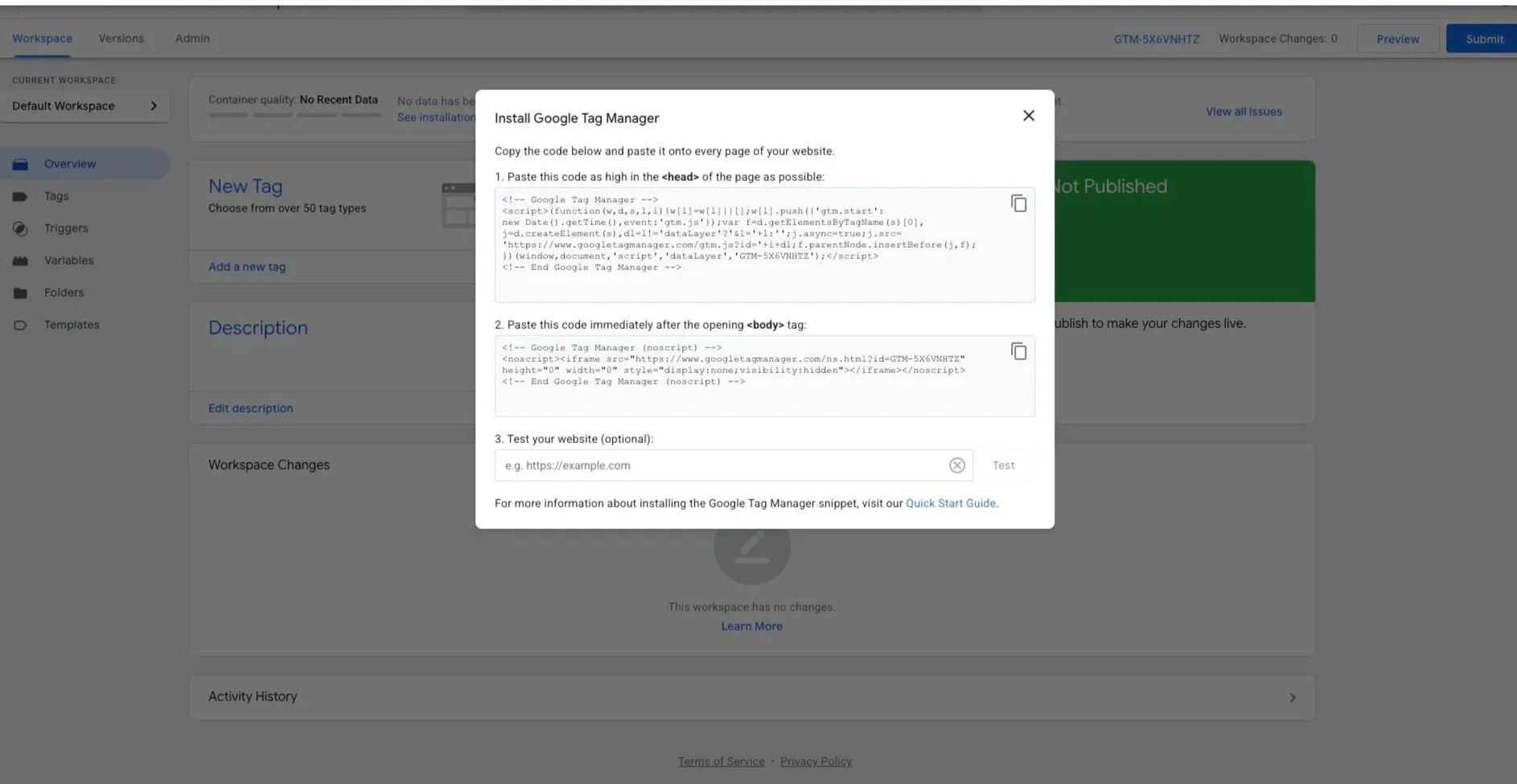
Step 6.
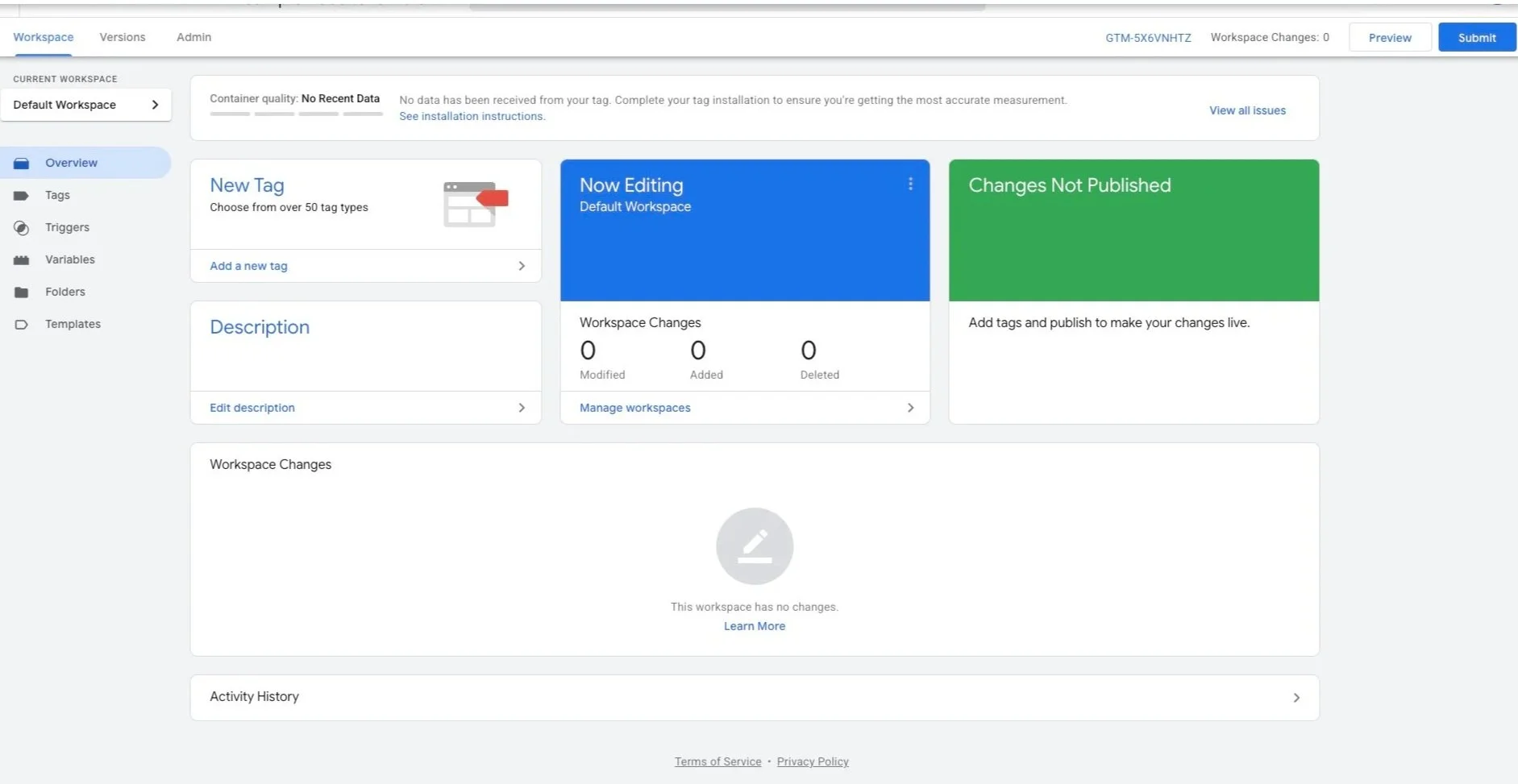
Once you close that window your screen should match the one down below.
When it does GTM is all set up and you are ready to add a new tag for Google to manage!
If you have any questions or need any help please visit our contact page and we will assist you further.
